Workflows5 min read
Figma to Webflow without rebuilding the motion
Moving a design from Figma to Webflow rarely gets stuck on the layout. It gets stuck on the motion, which the mockup only shows and someone then has to build again. Here is one asset followed all the way through: Side Scroll, tuned on Sagely Design, placed in a Figma mockup and pasted into Webflow, where it already moves.

Why motion gets lost between Figma and Webflow
In Figma, motion lives in a prototype or in a video next to the frame. In Webflow it has to be made again: with Interactions for scroll and hover, and with custom code for what Interactions can't do, like a shader background or a 3D scene. Plugins that turn Figma frames into Webflow elements carry the layout and the styles, but not the motion, because a Figma frame doesn't hold it.
A Sagely Design asset is one thing in three places: running in our editor, as a section in your Figma file, and as native elements in your Webflow project, with the motion built in.
One asset from the editor to Webflow
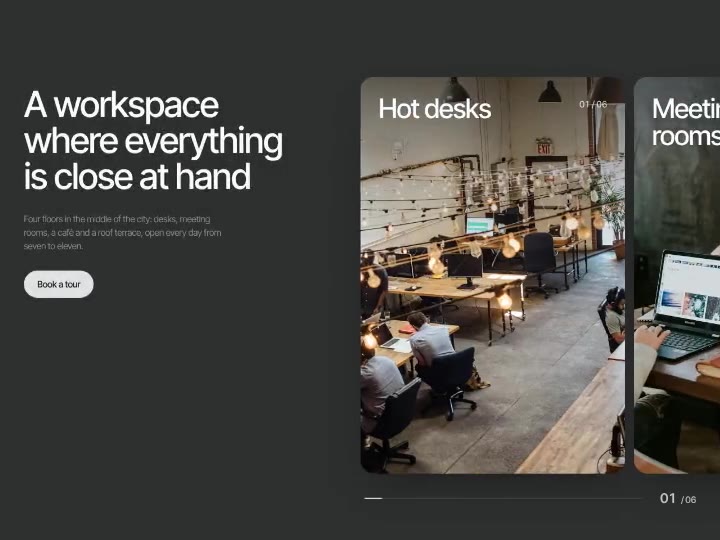
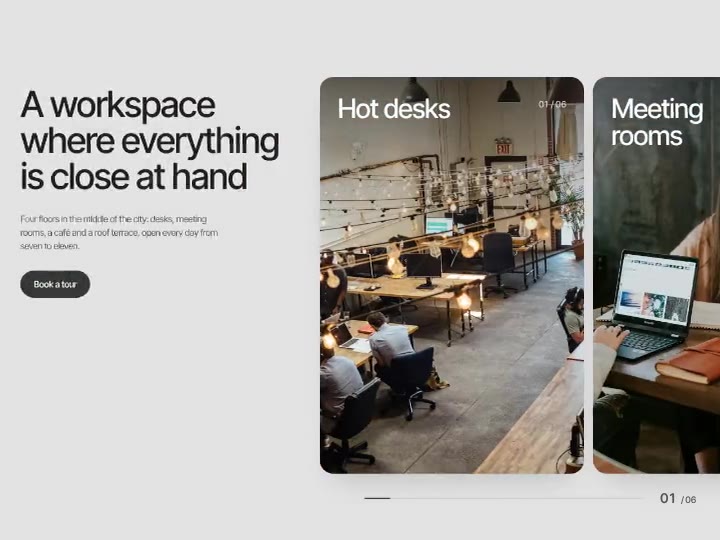
The example is Side Scroll, a free section that holds still while the page scrolls and slides a row of photo cards past its heading. Building that pin and slide with Webflow Interactions takes a while. Here it takes a paste.
Tune it on Sagely Design
Open Side Scroll and change it in the panel on the right: the theme, the heading and text, the button, the corners of the cards, how long the page scrolls through the row. The preview is the section itself, running the way it will on the site.

Copy it for Figma
Open the menu next to the Copy button. Under Copy for you see Figma, Framer and Webflow: the same section with the same settings goes to each of them. Choose Figma.

Put it into the mockup
Press Cmd+V in your Figma file. Side Scroll arrives as one component with variants: the desktop, tablet and phone layouts at 1440, 768 and 390 wide, each at every step of the scroll. Lay out the rest of the page around it and agree on the design as usual.

Paste it into Webflow
Back on Sagely Design, open the same menu, choose Webflow and press Cmd+V in the Designer. The section is there: the heading, the text, the cards and the photos as native elements with their own classes, and the motion in a single Code Embed inside it.

Make it yours
Retype the heading and the card titles, swap the photos for your own, duplicate a card to add one more. These are ordinary Webflow elements. Open Preview or publish, and Side Scroll pins and slides with your texts and photos.

What lands in your Webflow project
Not an iframe and not a video loop. Native elements with the motion built in.
- Texts, links, images and forms paste as real Webflow elements, so you edit the copy and swap pictures right in the Designer.
- Every block comes with its own classes in the Style panel. Change spacing, fonts and colours like any other element.
- The moving part sits in a single Code Embed inside the block. You don't need to build any Interactions for it.
- Right-click the block and choose Create component to reuse it across pages and keep every copy in sync.
- Shaders pause when they scroll out of view or the tab is hidden, and draw at a lighter resolution where the device needs it.
Other assets that go the same way
Every asset on Sagely Design pastes into Figma and Webflow like Side Scroll does. A few that are hard to build by hand in Webflow:
- Fluted Glass, a shader that turns a photo into a reeded glass window.
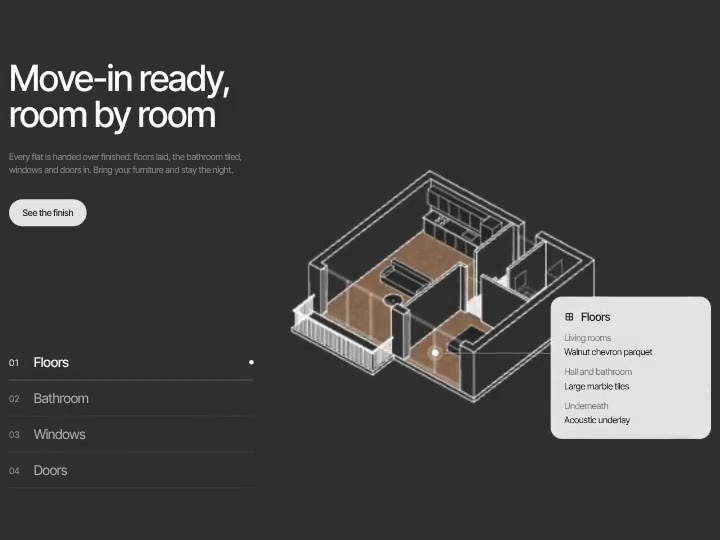
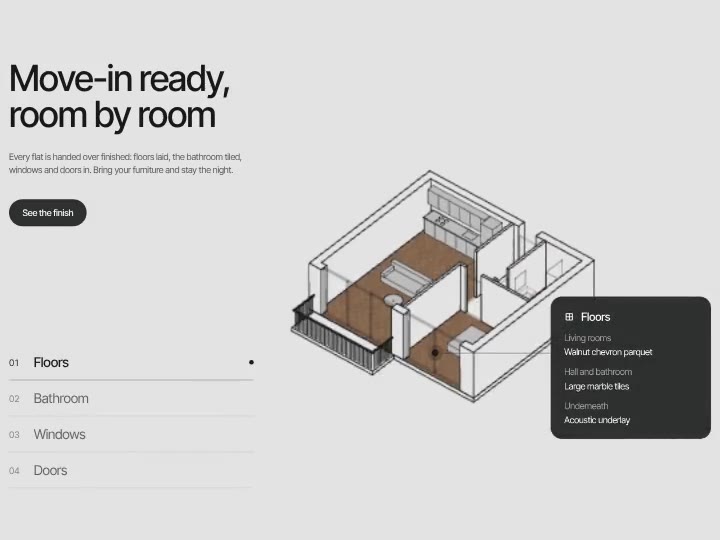
- Room Reveal, a 3D flat that shows each part of the finish room by room as the page scrolls.
- Hover Buttons, a button, an outline button and a link that share one hover.