
Guides6 min read
How to add scroll animations to a landing page without code
You don't have to hand-code scroll animations. For simple fades and slides, use your builder's own effects; for pinned, stacked or 3D motion, paste a ready section that already moves, such as the free ones on Sagely Design, and tune it to your brand before you paste.

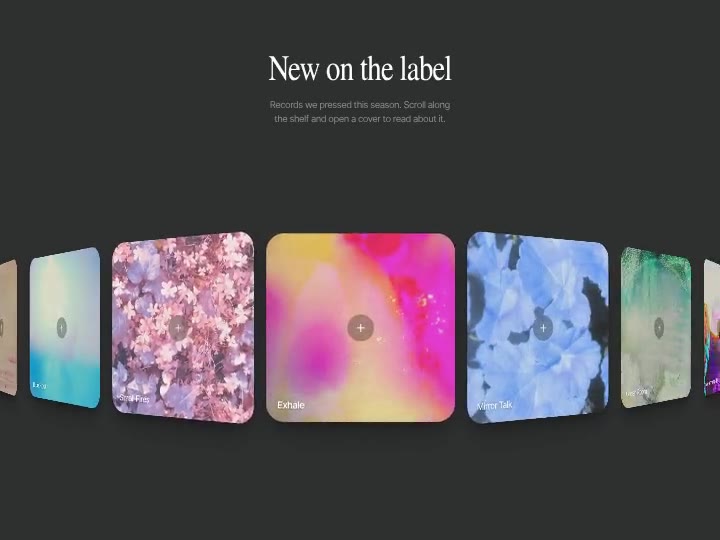
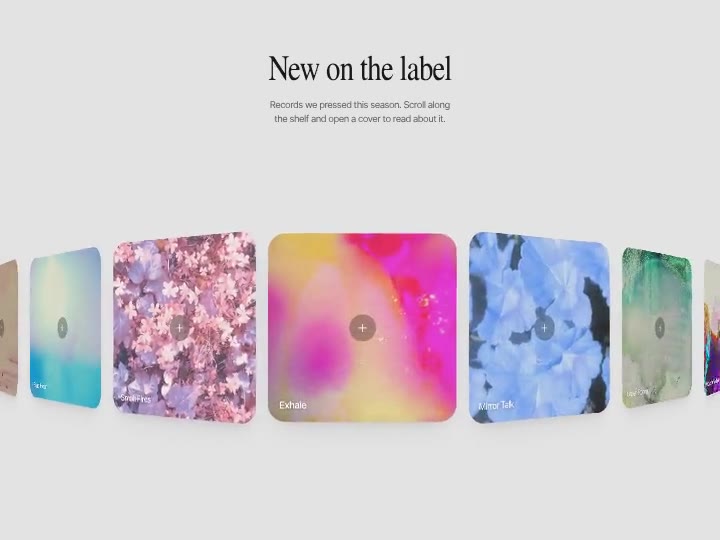
Why a landing page feels static
A static page shows everything at once. The first screen loads, nothing reacts, and the visitor has no reason to find out what is below it. Motion tied to the scroll fixes that when it gives each part of the page its moment: the work slides in as you reach it, the steps of your process light up one by one, the end of the page opens instead of just stopping.
The opposite problem is just as real. When every block fades and flies in, the page feels slow and busy. One or two sections that move with a purpose do more than twenty small effects.
Three ways to add scroll motion without code
| Way | Good for | What it takes |
|---|---|---|
| Your builder's own effects | Fades, slides and simple parallax | Framer's scroll and appear effects or Webflow Interactions, set up block by block |
| A ready section with the motion built in | Pinned galleries, stacking cards, steps that light up, 3D | Tune it on Sagely Design, copy it and paste into Framer, Webflow or an AI builder |
| An AI builder | Quick drafts of a whole page | A prompt, then rounds of fixes until the motion feels right |
Builder effects are the right tool for small things. A heading that fades up or a picture that moves a little slower than the page takes a minute in Framer or Webflow. They get slow when the motion has several parts: a section that holds the screen while cards slide past, a stack where each card leans back as the next one covers it. That is hours of timelines and testing on every screen size.
A ready section skips that work. On Sagely Design every section already moves the way it will on your site. You change its text, photos, colours and timing in the panel next to it, then copy it into your tool. In Framer it pastes as a code component, in Webflow as native elements with the motion in one Code Embed, and for Lovable, v0, Bolt or Claude Code it copies as a prompt with its full source, so the builder places the real section instead of guessing it.
Which scroll motion fits which section
Start from what each part of the page has to say, then pick the motion that says it. All of these are free with an account.
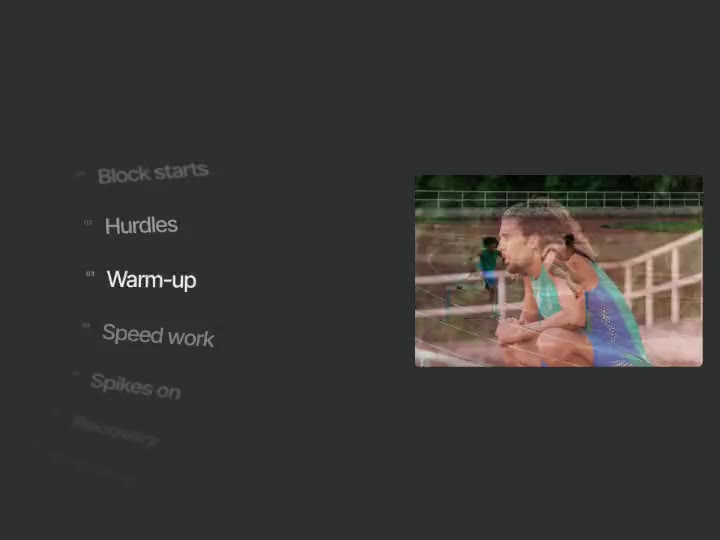
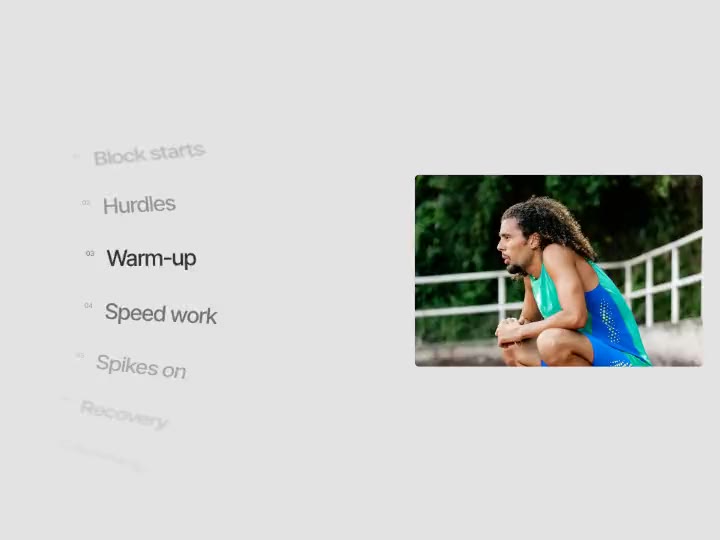
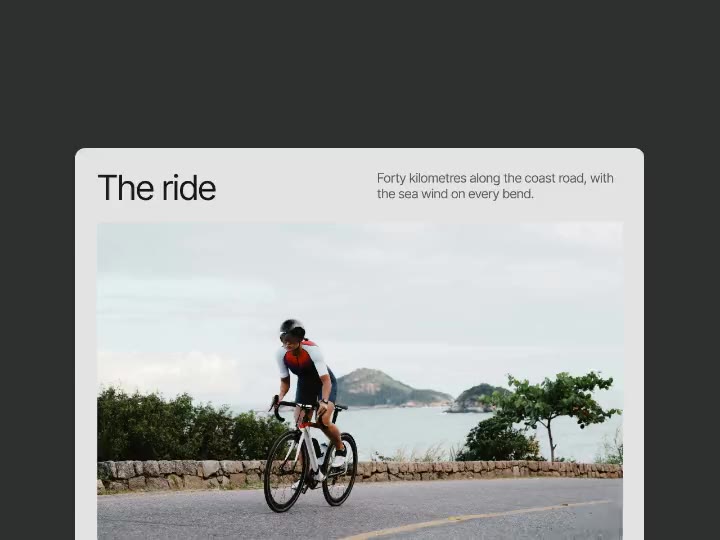
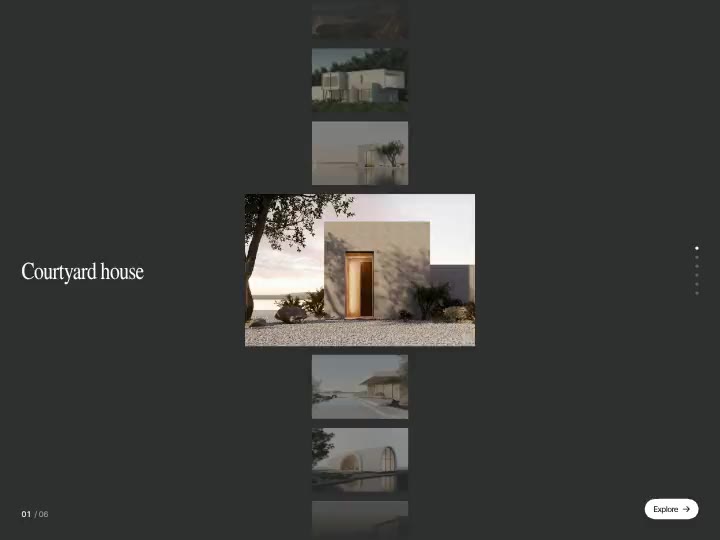
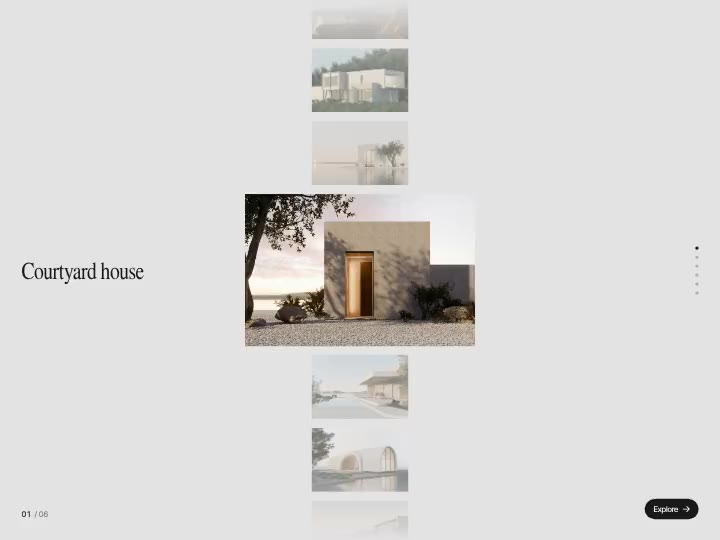
- First screen: Project Reel, a column of project photos that runs as the page scrolls, with the current one big in the middle.
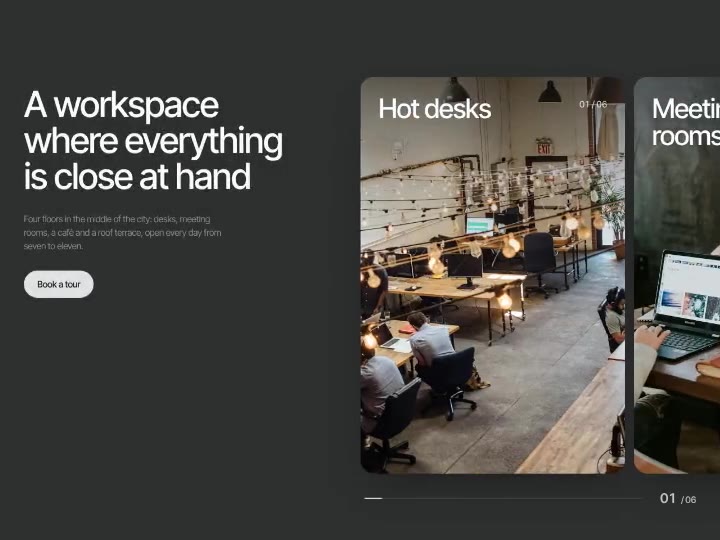
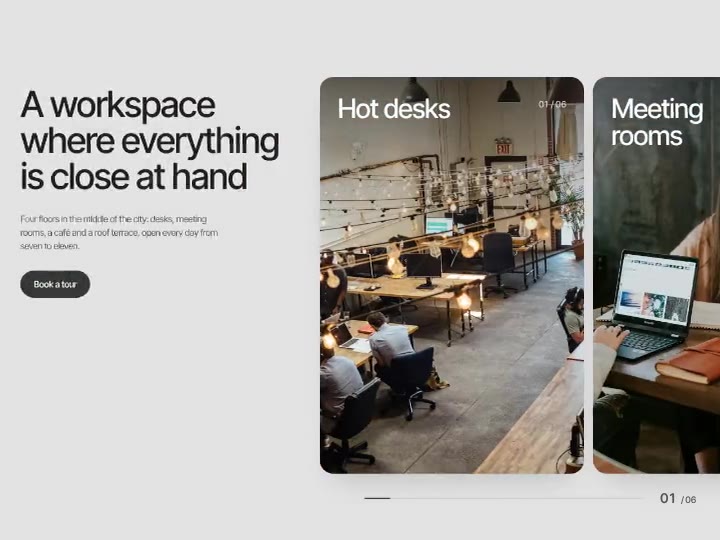
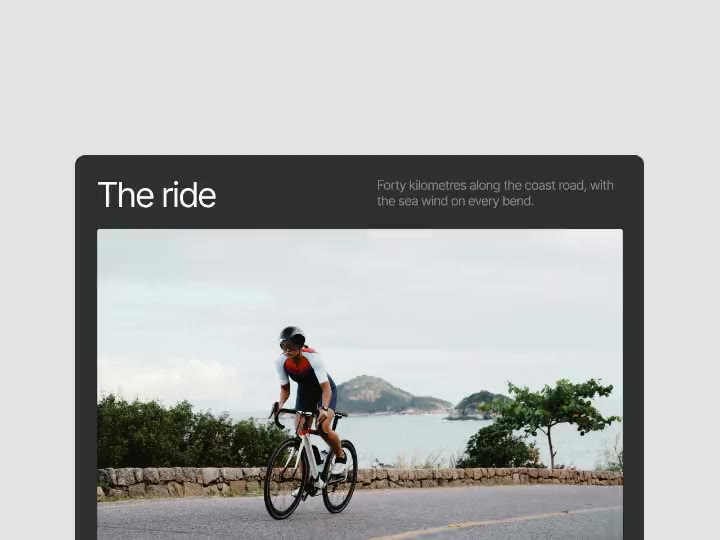
- Your work: Side Scroll, which holds the screen and slides a row of photo cards past the heading, or Stacked Cards, large cards that stack as you scroll.
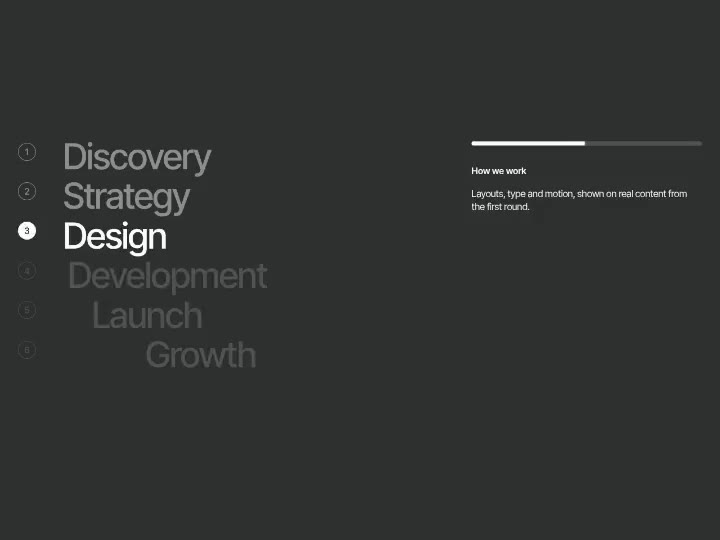
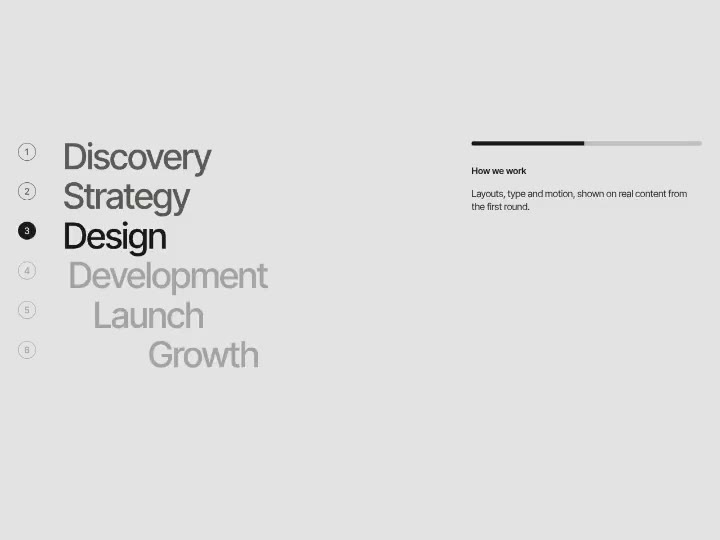
- How you work: Work Stages, stage titles on a staircase where each step lights the next.
- A list of services or clients: Drum Index, labels that roll over a drum turned by the scroll.
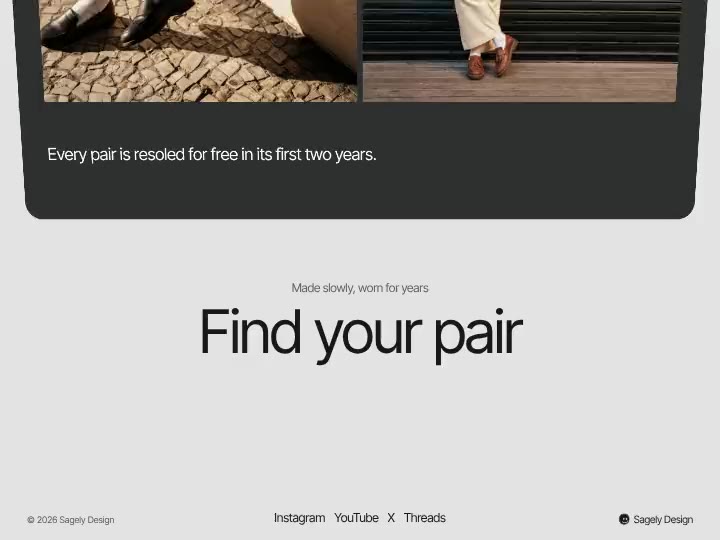
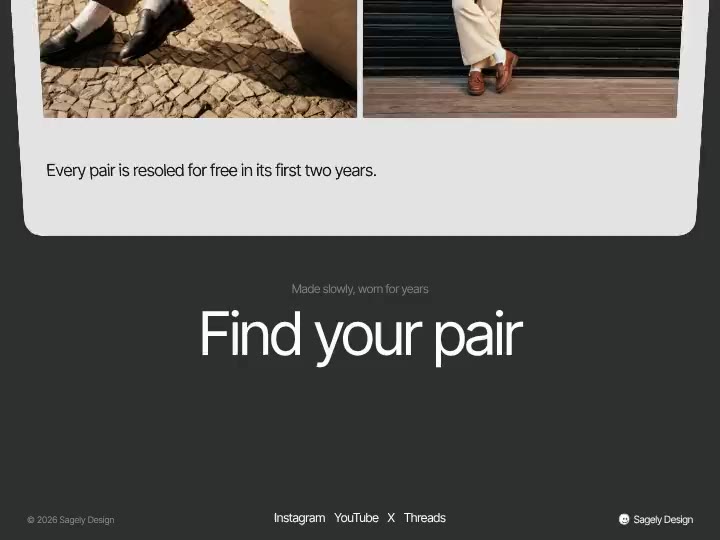
- The end of the page: Footer Reveal, where the page tips away and a full-screen footer opens under it.
Add one section in five minutes
Pick the section
Choose one part of your page that should hold attention, usually the work or the process. Open the matching section on Sagely Design and scroll its preview: it runs the way it will on your site.
Make it yours
In the panel on the right, change the heading and text, drop in your photos, pick colours and adjust how long the page scrolls through it. Every change shows at once.
Copy it for your tool
Open the menu next to Copy and choose Framer, Webflow or Figma, or copy the prompt for an AI builder. The settings you made go with it.
Paste and check
In Framer, press Cmd+V inside a page frame. In Webflow, select where it goes in the Designer and press Cmd+V; the motion starts in Preview and on the published site, because Webflow doesn't run code inside the Designer. In an AI builder, paste the prompt into the chat.
Keep the page calm and fast
- Give the page one or two moving sections, not one per block. The rest can stay still and let them stand out.
- Check the phone. Most sections are responsive, but a pinned section takes more of a small screen, so scroll through it on a real phone before you publish.
- Keep heavy pieces apart. Shader and 3D sections pause when they scroll out of view, but two of them on one screen still ask a lot of an older laptop.
- Turn on Reduce motion in your system settings once and look at the page again, so people who switch it on still get a page that reads well.


