Guides5 min read
How to make a liquid glass navbar for your site
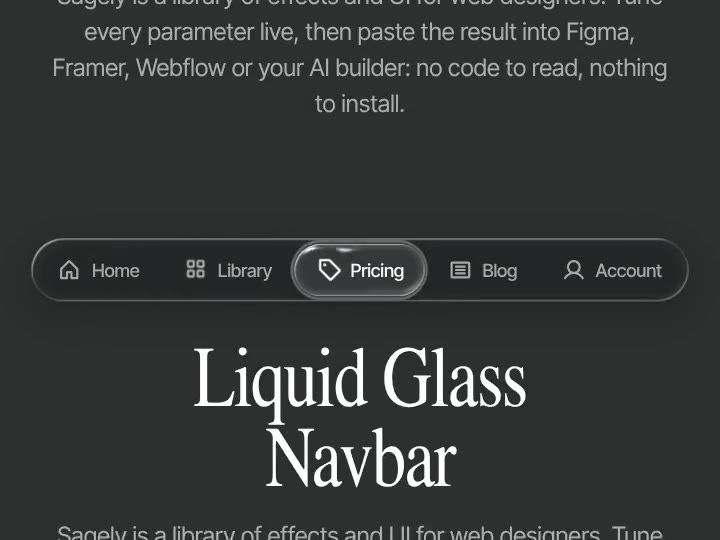
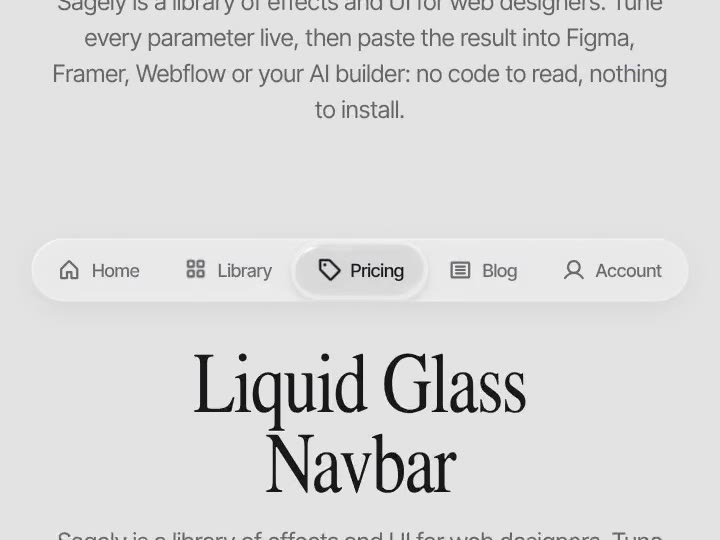
A liquid glass navbar is a menu on a pane of glass that bends the page behind it. In Liquid Glass Navbar the active item also sits in a drop of water that runs to the next one. Type your menu, tune it in the browser and paste it into Framer or Webflow as a working navbar. It takes about five minutes.

What makes a navbar look like liquid glass
Two things. The glass: its rim bends whatever scrolls behind it and splits the light into a thin rainbow, instead of only blurring it as frosted panels do. And the motion: the highlight under the active item behaves like water, not like a sliding pill.
Liquid Glass Navbar does both. Pick another item and the drop stretches toward it. On a long jump it breaks into droplets that merge back with a ripple. The cursor lifts the surface as it passes over. It fits app sites, product pages and portfolios, as a top bar, a phone tab bar or a section switcher, over photos and plain colour alike.
Make it in five steps
Type your menu
Open Liquid Glass Navbar and type your items under Items, separated by commas, up to six. Each item gets an icon from its word: Work gets a grid, Shop a tag, Contact an envelope, the rest a sparkle. Under Show choose icons and labels, icons only or labels only, and pick the size and the light or dark theme.

Tune the glass
Under Glass, Tint colours the pane and sets how see-through it is, Frost softens what is behind it, Refraction thickens the bent rim and Dispersion strengthens the rainbow on it. Text and Drop set the colours of the labels and the water. The shuffle button next to them tries colours that go together.

Set how the water moves
Under Water, Stretch sets how far the drop pulls toward the next item, Droplets lets long jumps break it apart, Ripples sets the wave when it lands and Cursor lift how much the surface rises under the cursor. Click the items in the preview to try it.

Copy it for your tool
Click the arrow next to Copy prompt and choose Framer, Webflow or Figma under Copy for. It copies right away, and the button remembers your choice. For Lovable, v0, Claude Code and other AI builders, pick the prompt under Copy prompt.

Paste it and link the pages
In Framer press Cmd+V (Ctrl+V on Windows): the navbar lands as a code component with every setting in the right panel, and each item has its own link field for your pages. In Webflow paste it into the Designer: the items arrive as Webflow links. In Figma it lands as a frame with Figma's own glass effect, for the mockup; the water moves only on the live site.
Settings that look right
- Over photos or video: raise Frost to 6 to 10 px and give Tint a little more cover, so the labels stay readable whatever passes behind.
- Over a plain page colour: keep Frost low and Dispersion around 0.5 or higher. With nothing busy behind the glass, the rainbow rim is what shows it is glass.
- As a tab bar on a phone: Show icons only, size L, four or five items.
- For a calm product site: Stretch around 0.3, Droplets off, Ripples low. The drop still moves like water, just quieter.
More glass for the same site
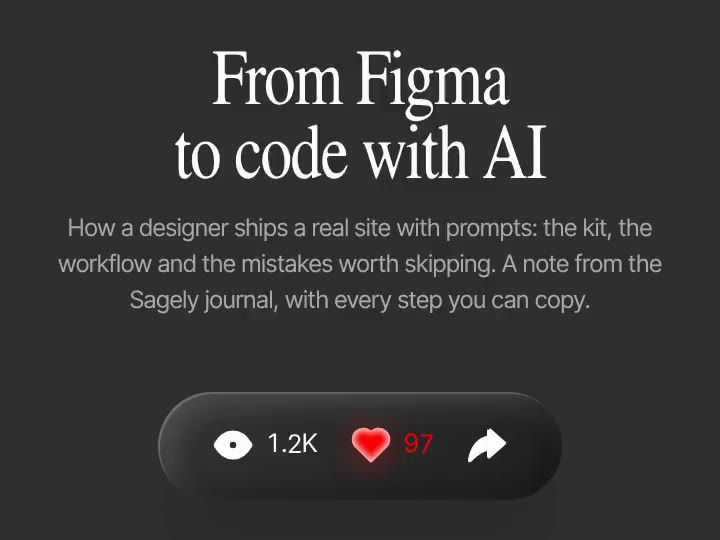
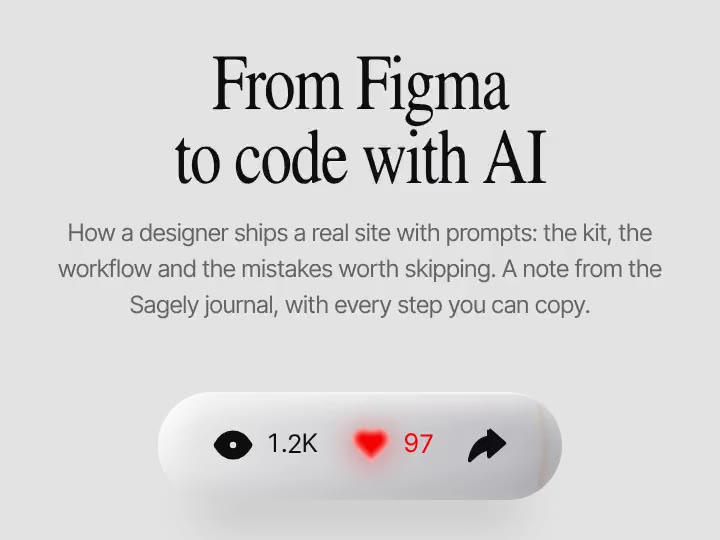
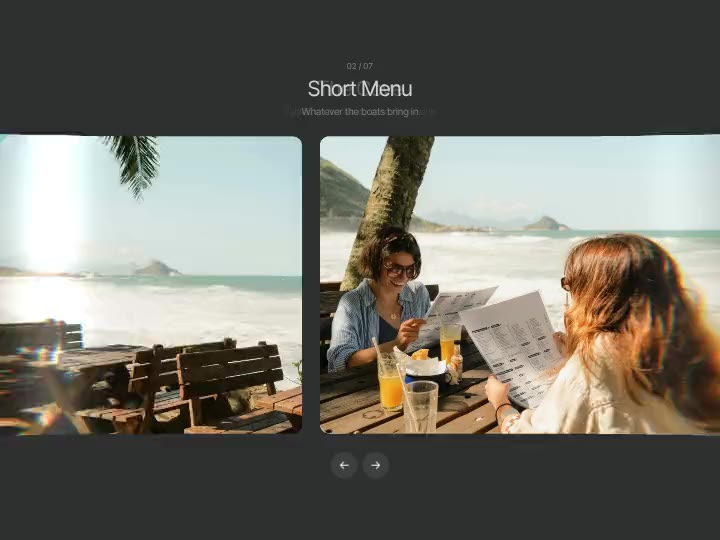
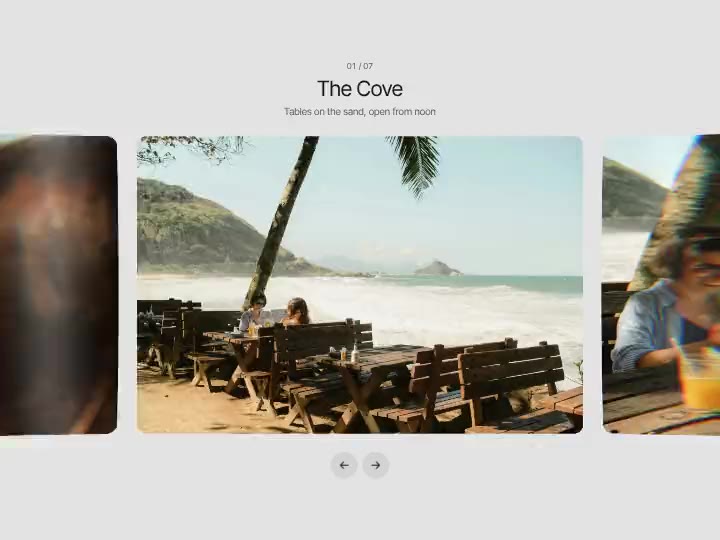
The navbar pairs with the rest of the glass set. Glass CTA is a call-to-action button whose rim bends the page and which opens into a contact form. Liquid Glass Carousel runs photos under a thick pane of glass. Reactions Bar puts views, likes and Share under an article in a glass pill, and Fluted glass turns a photo into ribbed glass; both are free.