
Comparisons6 min read
Figma or Framer for an animated website?
For an animated website, design in Figma and publish in Framer. Figma is best for laying out the page, agreeing on it and handing it off; Framer runs the motion on a live site. You don't have to choose up front: Sagely Design assets paste into both, so the section in your mockup and the one on your site are the same.

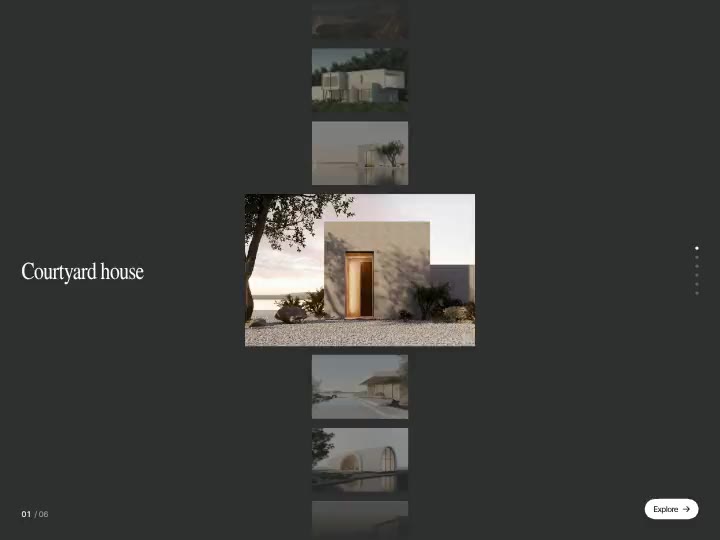
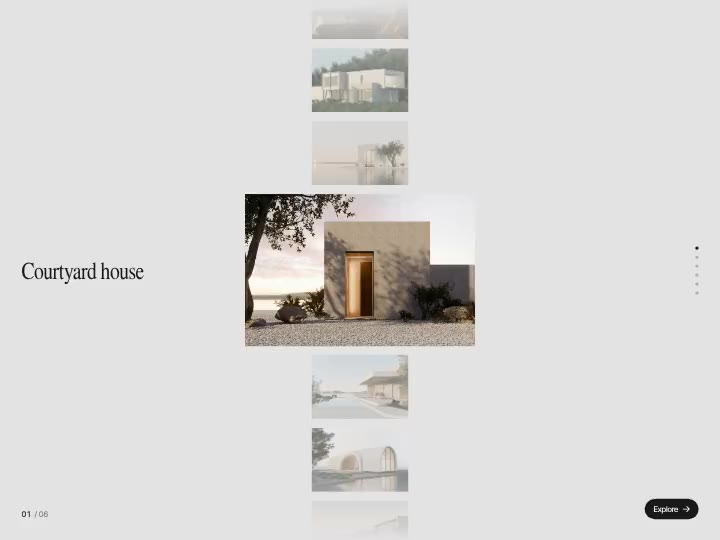
Figma and Framer side by side
We read Figma's and Framer's own pages on 27 November 2026. Both move fast, so check them again before you decide.
| Figma | Framer | |
|---|---|---|
| Main job | Design, prototype and hand off | Design and publish live websites |
| Motion | Prototype transitions; Figma Motion animates designs and hands the code to developers | Appear, hover and scroll effects built in, plus code components |
| Publishing | Figma Sites, in Beta, publishes responsive sites with preset interactions like marquee scrolling, custom cursors and hover effects | Every plan publishes; custom domains from Basic |
| CMS | Not the main focus | 2 collections on Basic, 10 on Pro |
| Price | Free to start, paid seats for teams | Free, Basic $10 and Pro $30 a month, billed yearly |
When Figma is the better place
Figma is where a team agrees on a site: the client sees the whole page, comments on it, and the developer gets exact spacing, type and colours. Its component libraries are about layout and consistency. Motion in Figma has grown up: prototypes play transitions, and Figma Motion lets you animate a design and copy the animation code for a developer.
Choose Figma as the main tool when someone else builds the site, in Webflow, in code or with an AI builder, and your job ends at an agreed design.
When Framer is the better place
Framer is where a designer ships the site without a developer. What you lay out is what goes live, and motion runs for real: appear and scroll effects are in the panel, and anything more complex comes in as a code component with its settings in the same panel. A CMS, custom domains and hosting are part of the plans.
Choose Framer when you build and publish the site yourself, and the motion is part of what you are selling.
Use both, without building the motion twice
Most animated sites go through both tools: designed in Figma, published in Framer. The motion is what usually gets lost on the way, because a Figma frame shows it and someone then has to build it again. A Sagely Design asset is the same piece in both places.
Tune the section
Open a section such as Side Scroll and change its text, photos, colours and timing in the panel.
Paste it into the mockup
Choose Copy for Figma and press Cmd+V. It lands as real layers with your settings, and most sections paste in three widths, 1440, 768 and 390.
Paste the same section into Framer
Choose Copy for Framer and press Cmd+V inside a page frame. It lands as a live code component, with every setting in Framer's panel, and the motion runs in Preview and on the published site.
The same goes for Webflow, which gets native elements, and for AI builders, which get a prompt with the full source. Our Figma to Webflow walkthrough follows one section all the way.
What about scroll effects in a Figma prototype?
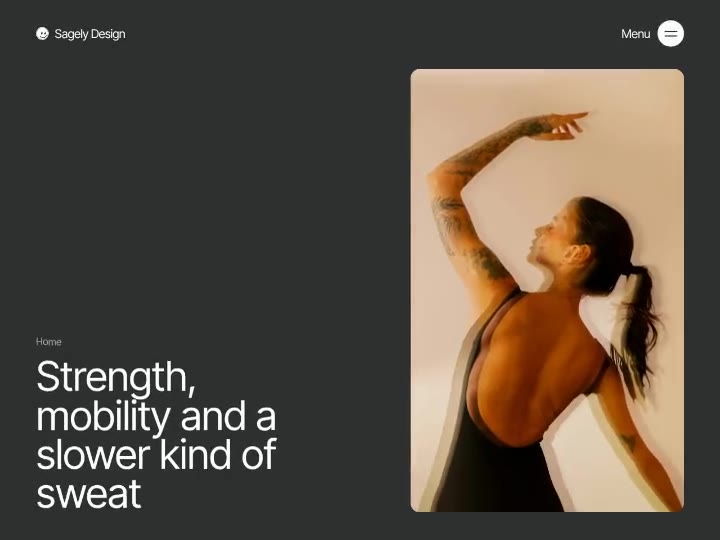
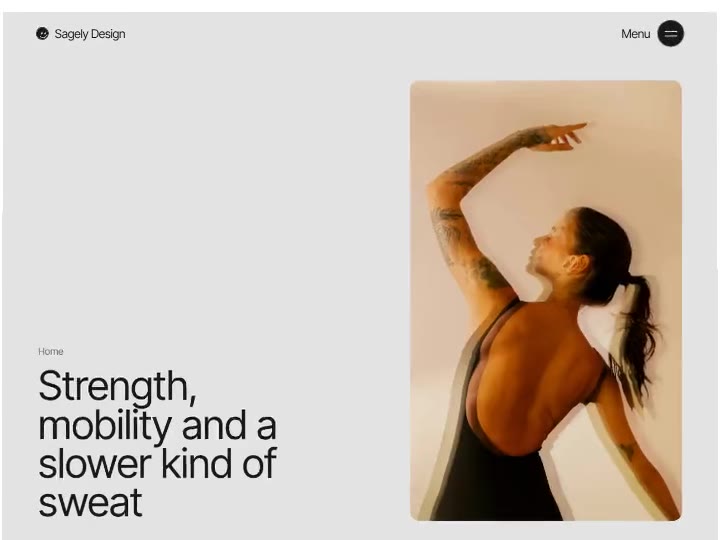
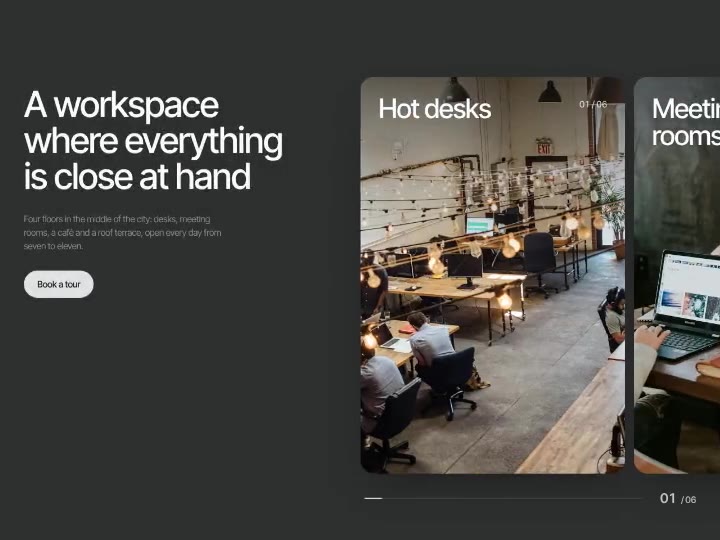
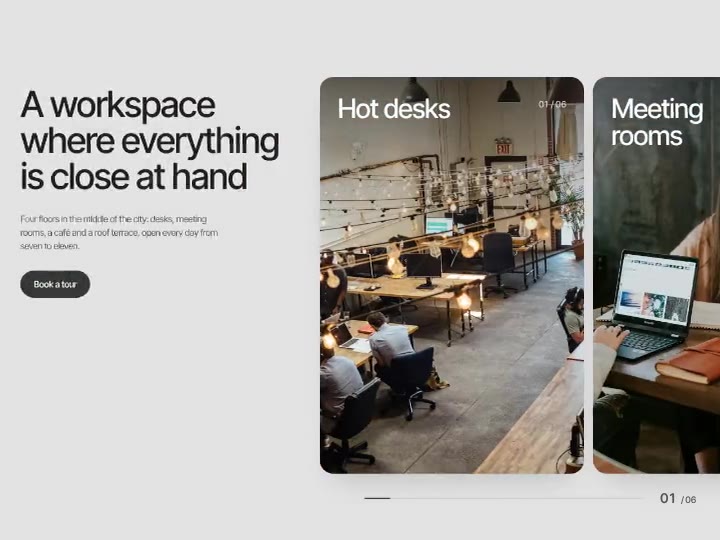
A Figma prototype is great for showing layout and the flow between screens. Scroll-driven motion, like a section that holds the screen while cards slide past, is hard to fake there. Paste the section into Figma to get its look in your mockup, in three sizes, and show the motion on a live page: the same section pasted into Framer, Webflow or an AI builder.


